


Here’s what I hear constantly from e-commerce sellers who want to level up their packaging: “I want professional-looking poly mailers with my brand colors and logo, but I’m not a designer. Can I actually do this myself, or do I need to hire someone? Will it look cheap if I make it myself?”
I get it. The fear of amateurish results is real, and packaging is one of those areas where you only get one first impression. But here’s my answer after helping hundreds of sellers create professional poly mailer designs: yes, you absolutely can do this yourself. You don’t need a design degree, expensive software, or years of experience. What you need is understanding of a few key principles and the right tools.
In this guide, I’m going to walk you through everything you need to know to create professional poly mailer designs – even if you’ve never opened Illustrator in your life. We’ll cover design tools, the six rules we follow for print-ready artwork, file formats, and common mistakes to avoid. By the end, you’ll know exactly how to create packaging that makes your brand look established and trustworthy.
Need help with sizing first? Our Poly Mailer Size Guide covers all standard dimensions to help you choose the right size before you start designing.
Before You Start: Two Critical Decisions
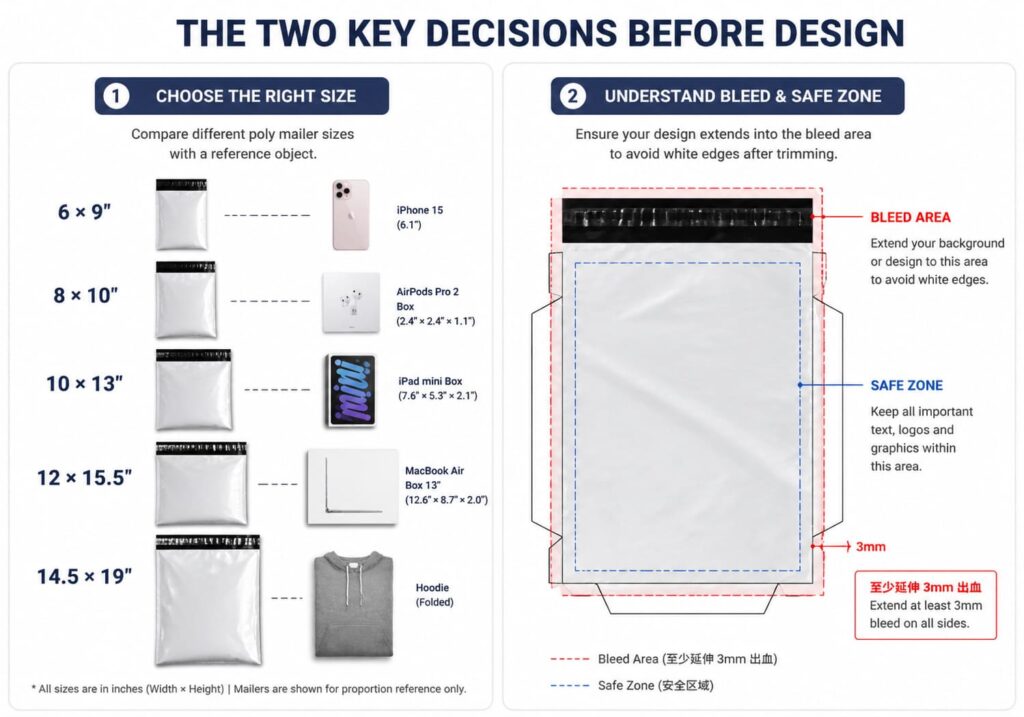
Choose the Right Size First
Nothing wastes more time and money than designing a beautiful artwork only to discover it doesn’t fit your poly mailer properly. Before you open any design software, nail down your size requirements.
Common poly mailer sizes and what they typically ship:
- 8.5″ x 12″ – Small items, accessories, jewelry, small apparel, samples
- 10″ x 13″ – Medium items, multiple products, standard apparel (our most popular)
- 12″ x 15.5″ – Larger apparel, shoes, larger product bundles
- 14.5″ x 19″ – Bulky items, larger products, multi-item orders
Pro tip: Measure your actual products and leave 1-2 inches of buffer. You want the mailer to comfortably hold your items without excess material that creates empty space (which can cause products to shift during shipping). A mailer that’s too small is worse than one that’s slightly too big.
Understand Bleed Area (The Concept That Trips Up Most Beginners)
Here’s where I see even experienced designers make expensive mistakes: bleed. Bleed is one of the most confusing concepts for new designers, but understanding it saves you from receiving thousands of custom mailers with white edges because your design didn’t quite reach the cut line.
What is bleed? Bleed is extra artwork that extends beyond the final cut line. When a design is printed and then cut to size, there’s always some variation in the cutting – even professional equipment isn’t perfect. Bleed gives you a margin for error so that when cuts vary slightly, you don’t end up with unprinted edges showing.
Standard bleed requirement: 0.125″ (1/8 inch) on all sides
What this means for your design:
- If your poly mailer is 10″ x 13″, your artwork should be 10.25″ x 13.25″
- The “extra” 0.125″ on each edge gets cut away during production
- This protects you from white edges even if cutting is slightly off
Safe zone vs. bleed zone: Within your bleed area, there’s a “safe zone” (typically 0.25″ from the final cut line) where you should keep important elements like text and logos. This prevents critical design elements from being too close to the edge where they might look cramped or get partially cut off.
Many template providers, including rhkpackaging, offer free downloadable design templates with built-in bleed and safe zone guides. Using these templates eliminates the guesswork and ensures your artwork is production-ready from the start.
Design Tools: Pick Your Weapon
You don’t need expensive software to create professional poly mailer designs. Here’s my honest breakdown of the best options based on your situation and skill level:
Canva - Free and Easiest for Beginners
Cost: Free (with premium elements available)
Best for: Sellers with no design experience who need functional results quickly
Canva has become my top recommendation for e-commerce sellers who want professional results without a learning curve. The interface is intuitive, templates are plentiful, and you can produce quality designs in under an hour.
What Canva does well:
- Prevents catastrophic errors – locks aspect ratios, guides setup
- Huge library of free and premium templates
- Drag-and-drop simplicity
- Built-in size presets including common poly mailer dimensions
- Collaboration features if you’re working with a partner
Canva limitations:
- Not true vector software – scaling beyond 100% may lose quality
- Exports at 72 DPI by default (you must change this for print)
- Some premium elements require paid subscription
- Fewer advanced print-specific features
Our take: For most small e-commerce sellers, Canva is the smart starting point. Create your design, export at 300 DPI, and you’re ready to print. Pair your designs with professional self-sealing poly mailers for the best results. Upgrade to paid only if you need premium elements or brand consistency tools.
Adobe Illustrator - Professional Grade
Cost: $23.99/month (subscription)
Best for: Sellers who want complete control and professional results
Illustrator is the industry standard for print design. If you’re serious about packaging design and want to scale your brand professionally, this is what the pros use.
What Illustrator does well:
- True vector design – infinite scaling without quality loss
- Complete control over every design element
- Professional color management (CMYK mode built in)
- Industry-standard file exports for print production
Illustrator limitations:
- Significant learning curve (plan 20-30 hours to become proficient)
- Expensive monthly subscription
- Overkill for simple designs
Our take: If you have the budget and time to learn properly, Illustrator gives you the most professional results. Many designers offer freelance poly mailer design services using Illustrator – you can hire someone to create your artwork if you prefer not to learn the software yourself.
Figma - Free and Collaborative
Cost: Free for basic use
Best for: Teams and collaborative design processes
Figma has exploded in popularity among design teams, and it’s become a viable option for packaging design – especially if you’re working with remote collaborators.
What Figma does well:
- Free for individuals and small teams
- Browser-based – no software to install
- Real-time collaboration features
- Vector design capabilities
- Exports at 300 DPI when you set custom dimensions
Figma limitations:
- Print-specific features less developed than Illustrator
- Export workflow requires more manual setup
- Less intuitive for print production files
Our take: Figma is a legitimate option, especially for teams. The vector capabilities are solid and the collaboration features are excellent. Just be prepared to spend more time configuring export settings for print production.
The 6 Design Rules We Follow
These aren’t arbitrary rules – they’re lessons learned from years of design and printing experience. Following them means the difference between files that print correctly the first time and files that require expensive revisions or produce disappointing results.
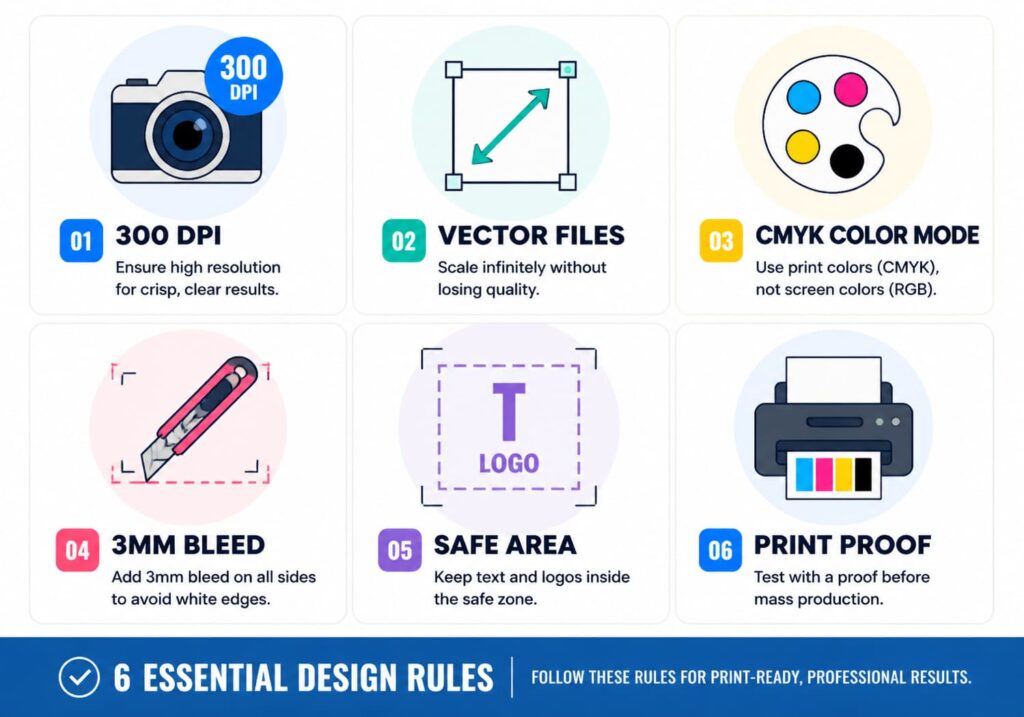
Rule 1: 300 DPI Minimum - No Exceptions
Resolution matters enormously in print. At 300 DPI you get smooth gradients and crisp text; at 72 DPI (standard screen resolution), designs look blurry when printed.
What to do:
- Only use images that are 300 DPI or higher at final print size
- If you’re designing at 50% scale for a 10″ mailer, your file should be 300 DPI at 5″ x 6.5″
- Stock photo sites like Shutterstock and Adobe Stock offer high-DPI options
Why it matters: A 72 DPI image (fine for websites) looks terrible when printed at 300 DPI. You can’t “fix it in post” – the quality simply isn’t there to begin with.
Rule 2: Use Vector Files Whenever Possible
Vector files (AI, EPS, SVG) use mathematical paths rather than pixel grids, scaling to any size without quality loss. This is critical for packaging design where you might print the same artwork on different size mailers.
What to do:
- Create logos and text as vector elements
- Use vector-based design software (Illustrator) or vector-capable tools
- Convert text to outlines before sending to printer (ensures font rendering is preserved)
Why it matters: Imagine your logo looks perfect on a 10″ mailer, then you decide to use it on a 14″ mailer. With a vector file, no problem. With a raster file, you’ll see quality degradation.
Rule 3: Color Mode Must Be CMYK
Screens display RGB (red, green, blue). Printers use CMYK (cyan, magenta, yellow, black). If you design in RGB and send to a printer, your colors will shift – sometimes dramatically.
What to do:
- Set your design software to CMYK color mode before starting
- Understand that some neon and bright RGB colors cannot be perfectly replicated in CMYK
- Request color proofs from your printer before bulk orders
Why it matters: That perfect vibrant orange you see on screen might print as a muted rust color. CMYK mode lets you see approximately how colors will actually print while you’re designing.
Rule 4: Include Bleed on All Sides
As we discussed earlier, bleed is non-negotiable for professional print production. Without it, even perfect cutting can result in white edges.
What to do:
- Extend background colors and patterns to the edge of your document
- Add 0.125″ bleed on all sides
- Verify your design software is set to include bleed in exports
Why it matters: Printers cannot perfectly align cuts every time. Bleed gives them margin for error without exposing unprinted edges.
Rule 5: Safe Zone Margins Are Your Friend
If bleed is about what gets cut away, safe zone is about what must survive intact. Keep critical design elements (logos, text, important graphics) at least 0.25″ inside the final cut line.
What to do:
- Create a visual “safe zone” guide in your design software
- Place all text and logos within the safe zone
- Background elements can extend to the bleed edge
Why it matters: A logo cut off by 1/8″ at the edge looks unprofessional. Safe zones ensure your brand identity is fully visible and properly framed.
Rule 6: Test Print Before Bulk Orders
This is the rule most often skipped – and it leads to costly mistakes. Always test your design before committing to a large print run.
What to do:
- Print a single prototype at home (or request from your supplier)
- Check color accuracy – does it match your screen? Your expectations?
- Verify size – does the design fit the poly mailer properly?
- Check readability – can you read all text clearly?
- Physical feel – does the design look and feel professional?
Why it matters: A $500 bulk order of poly mailers with a color error or alignment issue is an expensive lesson. A $10 test print saves you from that mistake.
File Formats for Printing
Not all file formats are created equal for print production. Here’s what you need to know:
Accepted File Formats (Best to Worst)
- AI (Adobe Illustrator) – Industry standard, preserves all design data, fully editable
- EPS (Encapsulated PostScript) – Universal format, vector support, widely accepted
- PDF (Print-Ready) – Preserves design intent, must be properly set up with bleeds
- SVG (Scalable Vector Graphics) – Vector format, not always accepted by print shops
- PNG (High Resolution) – Raster format, only acceptable if 300 DPI minimum
- JPEG – Not recommended for print, lossy compression degrades quality
What We Recommend
When in doubt, provide your printer with:
- Primary file: AI or EPS (vector)
- Secondary file: High-resolution PDF with bleeds
- Preview file: PNG or JPEG for color reference
This gives your printer everything they need to produce your poly mailers accurately. For custom printed poly mailers with professional quality, rhkpackaging’s custom printing service handles the file preparation for you.
FAQ: Designing Poly Mailers
Q: Do I really need design software, or can I use free tools?
A: Free tools like Canva are absolutely capable of producing professional poly mailer designs. The software matters less than understanding the principles we covered. Thousands of successful e-commerce brands use Canva for their packaging design.
Q: What's the minimum resolution for poly mailer artwork?
A: 300 DPI at final print size is the minimum. Higher is always acceptable. Lower will result in blurry, pixelated prints that look unprofessional.
Q: Can I use my brand's RGB logo for poly mailer printing?
A: You can, but you shouldn’t. Convert it to CMYK color mode first, and be aware that some RGB colors (especially bright neons) won’t translate perfectly. Request a color proof to verify before bulk printing.
Q: How do I know if my design will fit the poly mailer properly?
A: Set your canvas to your poly mailer dimensions plus 0.25″ bleed on each side. This gives you an accurate preview of how the design will fit.
Q: Should my poly mailer design be the same on front and back?
A: Not necessarily. Many brands put a primary design on the front (for brand visibility during shipping) and a simpler design, care instructions, or logo on the back. Both approaches work professionally.
Q: What's the best file format to send to a printer?
A: AI (Adobe Illustrator) is the industry standard and preferred by most print shops. PDF with proper bleed settings is also widely accepted. Always confirm with your specific supplier what formats they prefer.
Ready to Design Your Poly Mailers?
You entered this guide wondering if you could design poly mailers yourself. Now you know: absolutely yes. With the right tools, understanding of print requirements, and attention to the six rules we covered, you can create professional packaging that elevates your brand.
Need help choosing the right size? Our Poly Mailer Size Guide covers dimensions, ideal uses, and sizing tips to help you pick the perfect fit for your products.
Looking for colored options to complement your design? We offer a full selection of Colored Poly Mailers in white, black, pink, blue, and more – perfect for brand differentiation or seasonal packaging.
Visit rhkpackaging.com to browse our complete selection of poly mailers and packaging supplies for e-commerce sellers at every volume level.
Your packaging is an extension of your brand. Taking the time to design it correctly – whether you do it yourself or work with a designer – pays dividends in customer experience and brand perception. Start designing, test thoroughly, and watch your unboxing experience transform.
Ready to eliminate seal failures and size mismatches from your supply chain?
Request a formal quote with your specifications. Response within 4 business hours.
RHK Packaging — ISO 9001:2015 Certified Manufacturer Since 2010
[email protected]